
Agenda:
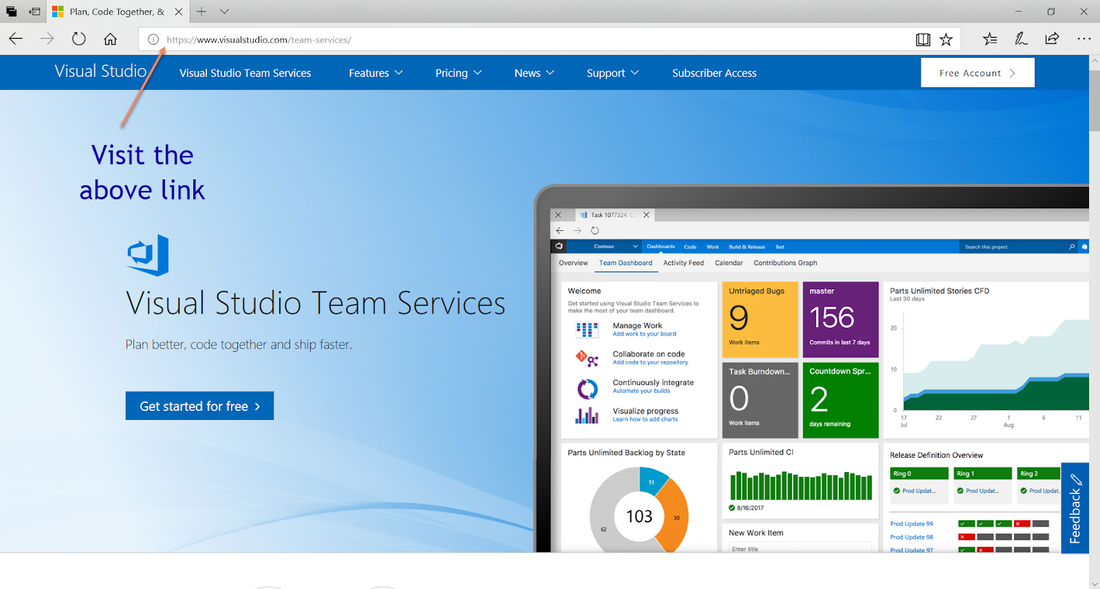
First we need a Microsoft Account to create an Id on TFS 2017.
So, follow the steps below. Click on Get Started for free link.
- Intro to Scrum
- Create a new Id on TFS and create a new repository in TFS 2017
- Mapping Visual Studio 2017 with TFS 2017 repository
- Create a new web application and map it to Source control
- Management of Team in TFS Web App and in Visual Studio 2017
First we need a Microsoft Account to create an Id on TFS 2017.
So, follow the steps below. Click on Get Started for free link.
Click on Create new account.
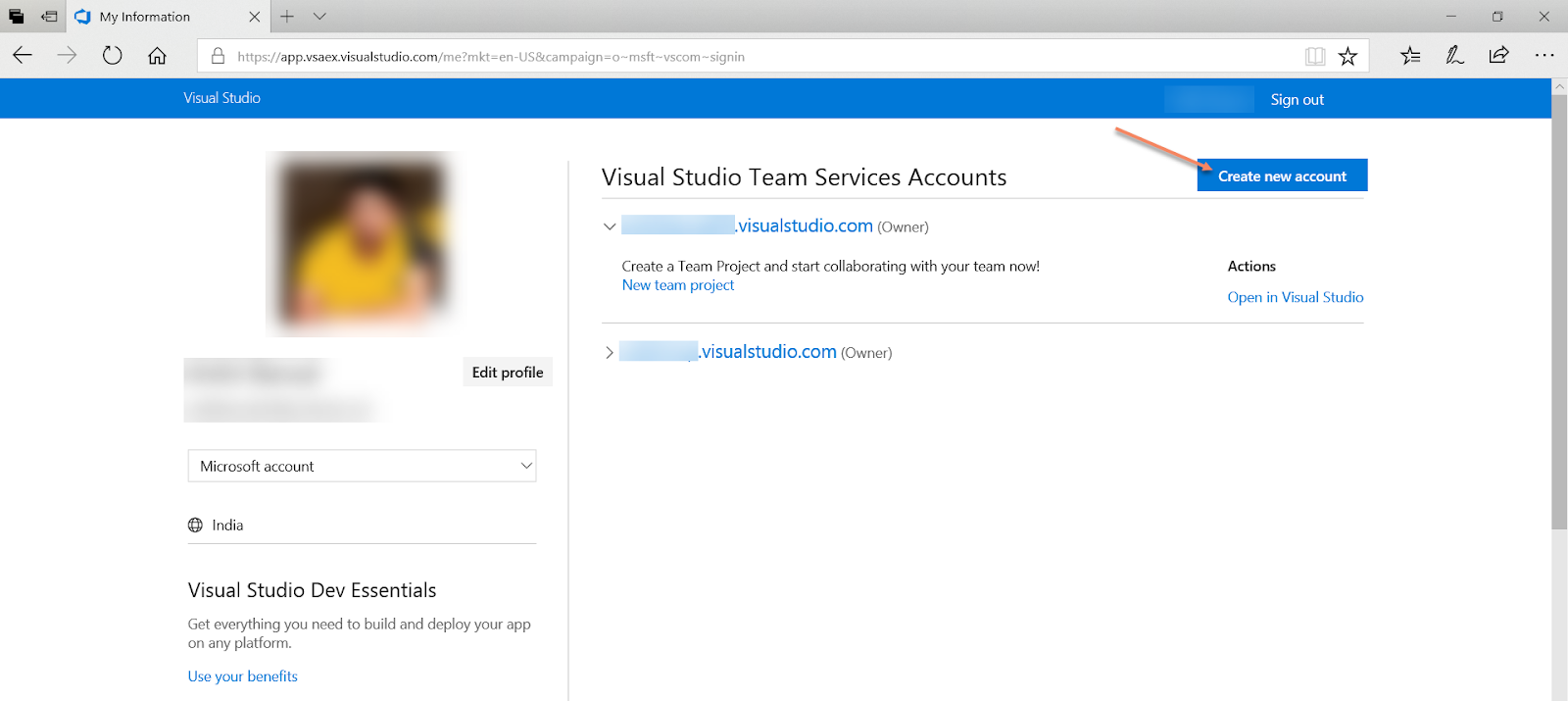
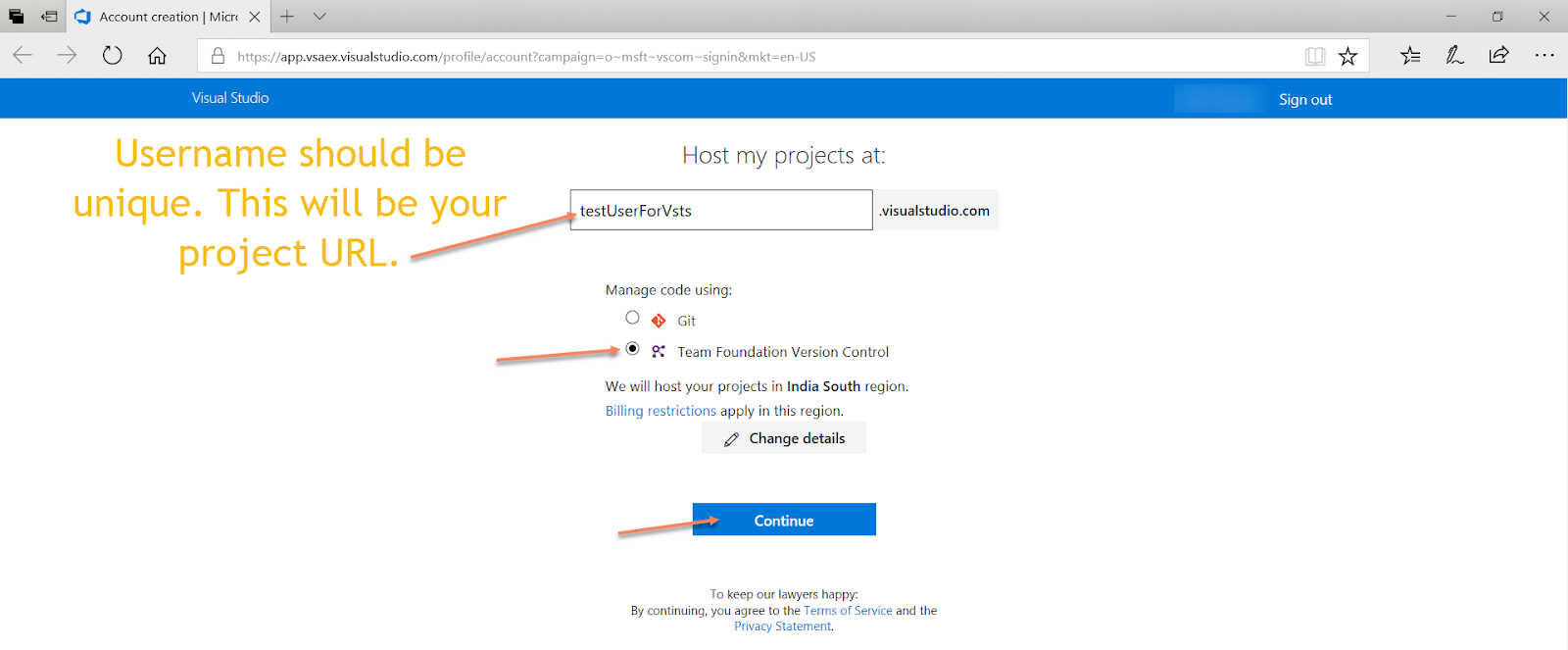
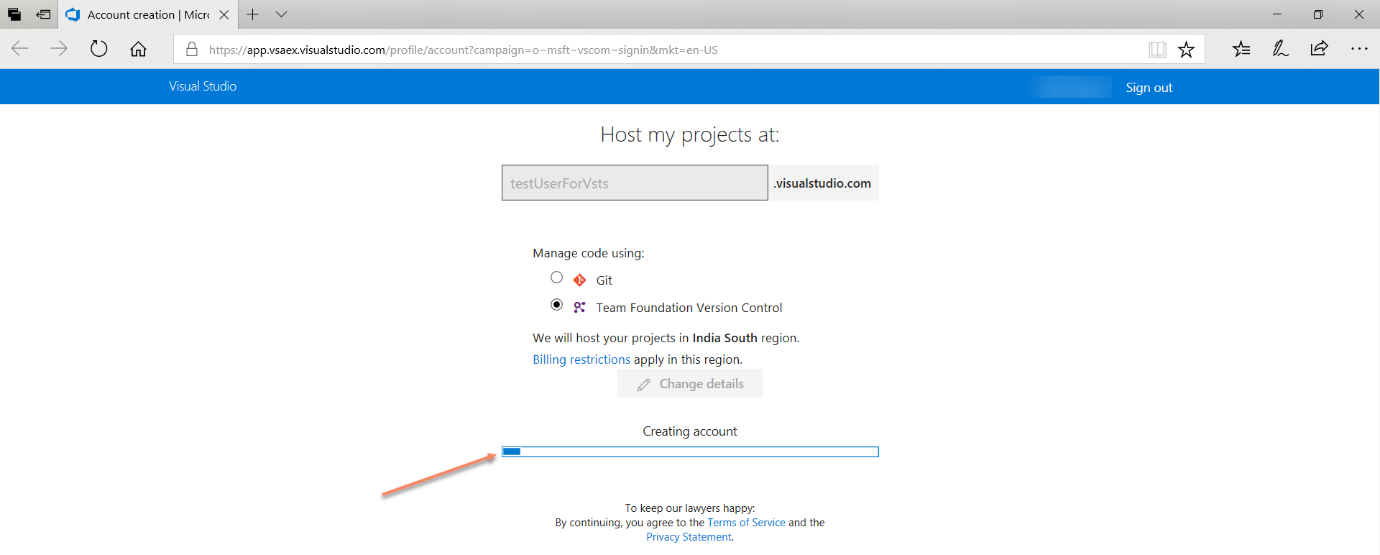
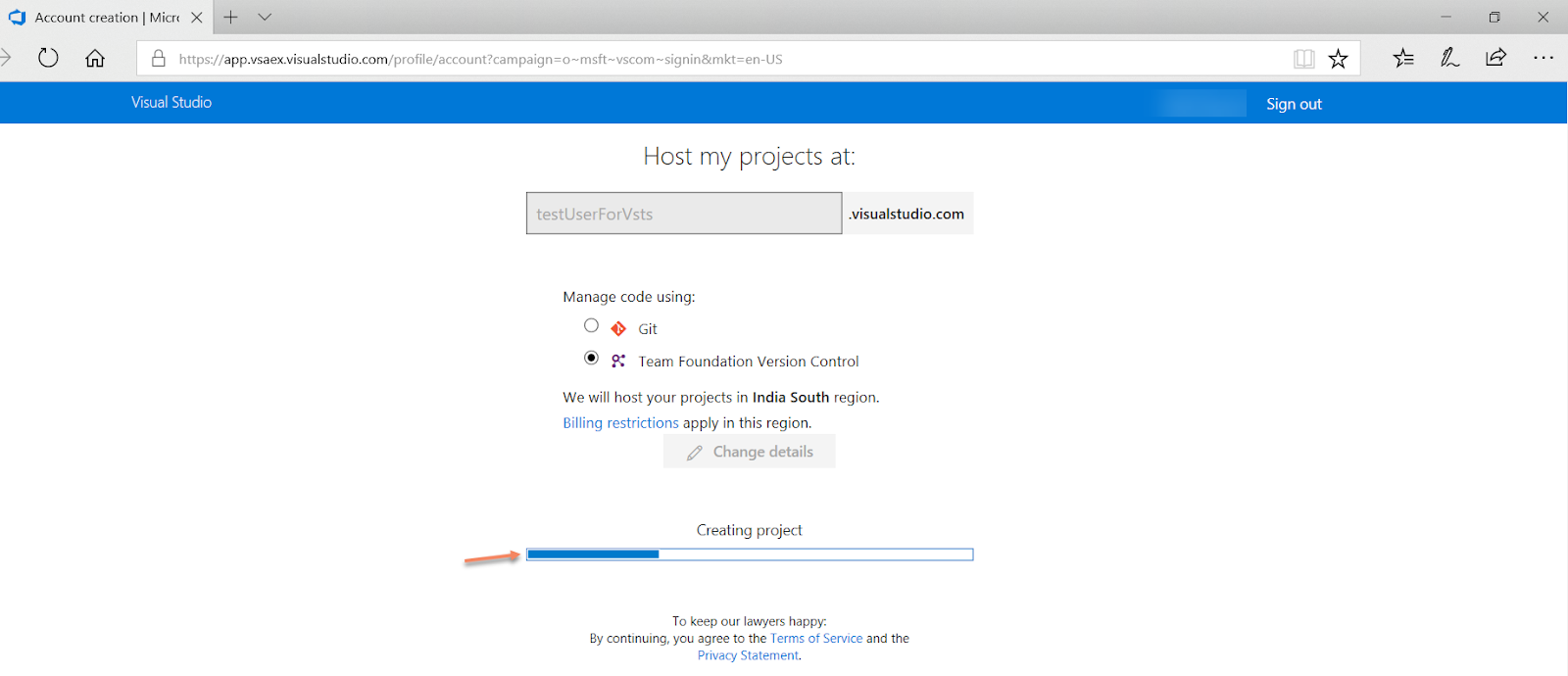
With above steps, a new project will be created in TFS. Now, let’s look at dashboard.
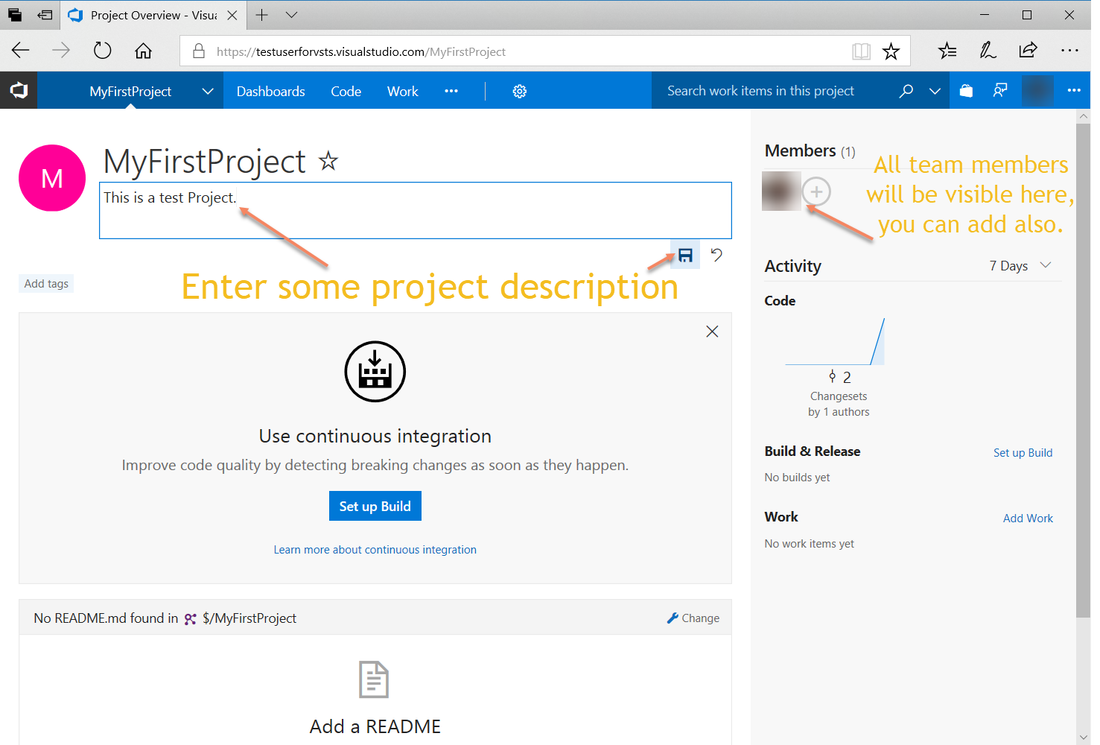
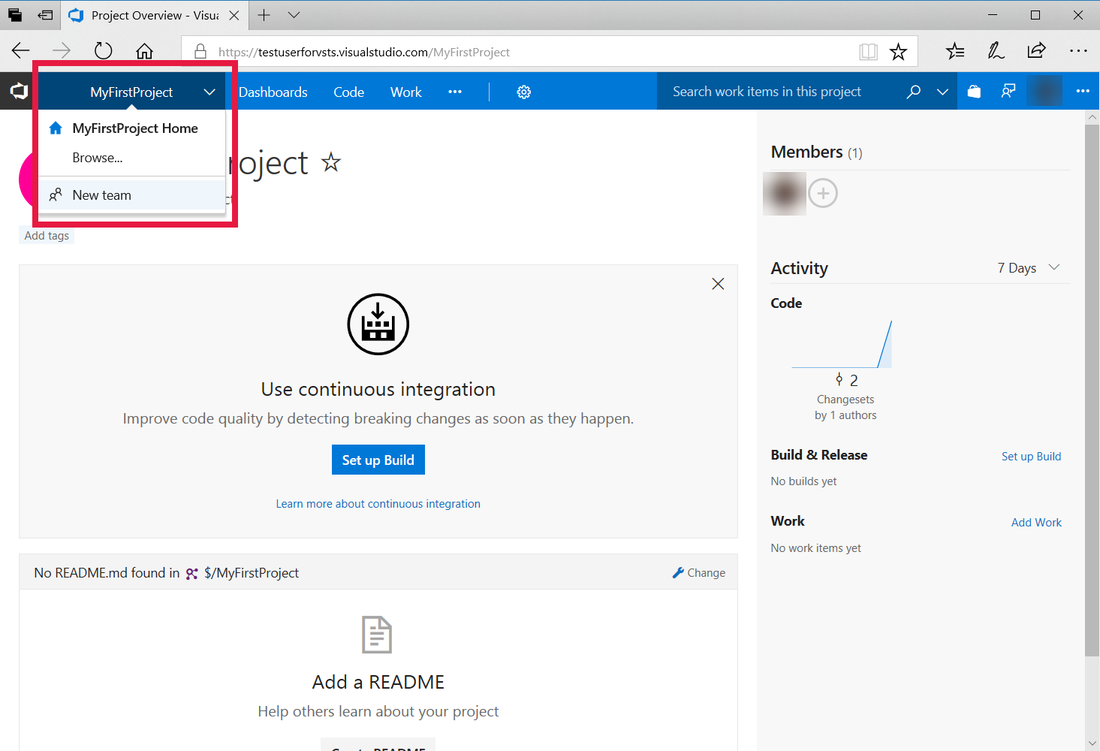
In the above screenshots, you can the name of the project and the links that you can use to add new team members to your team.
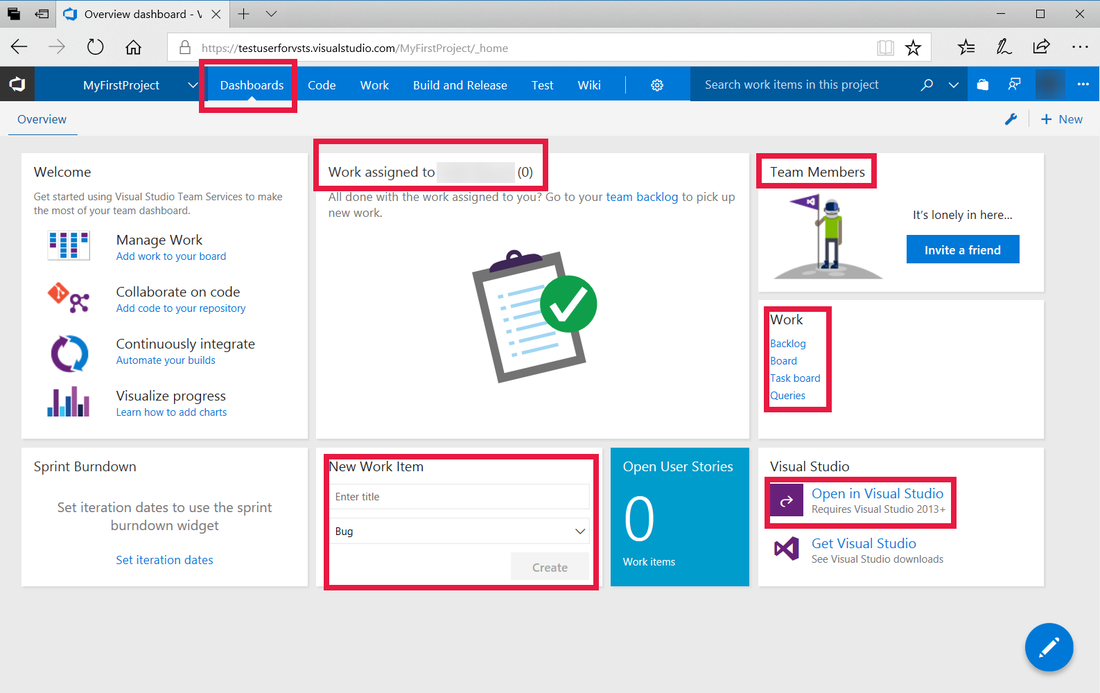
In above picture, you can directly create a new work item from Dashboard and open the project in Visual Studio.
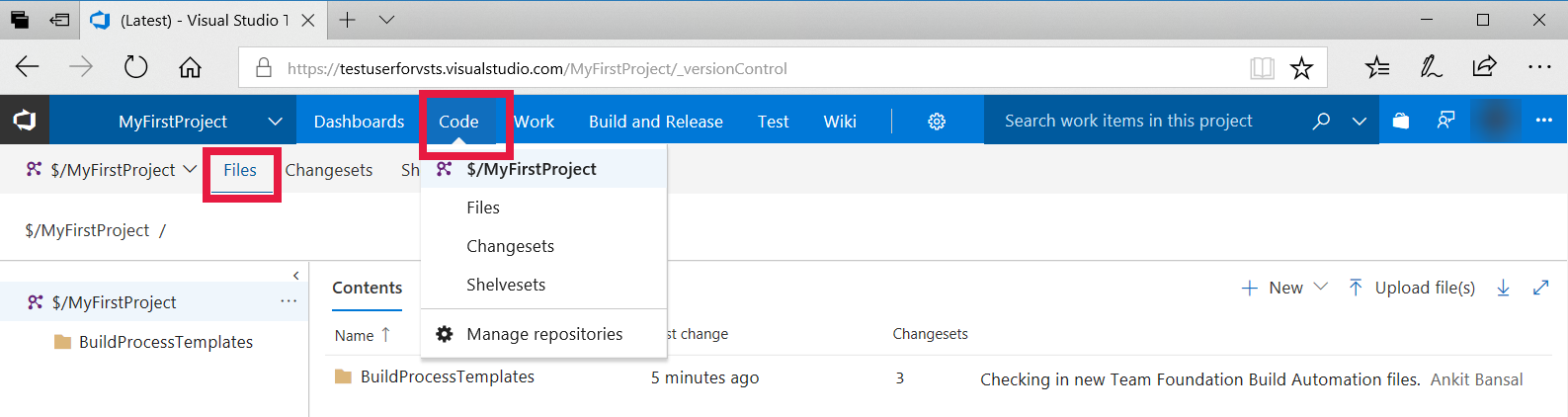
So in the code tab, you can see the project files, Changesets and Shelvesets.
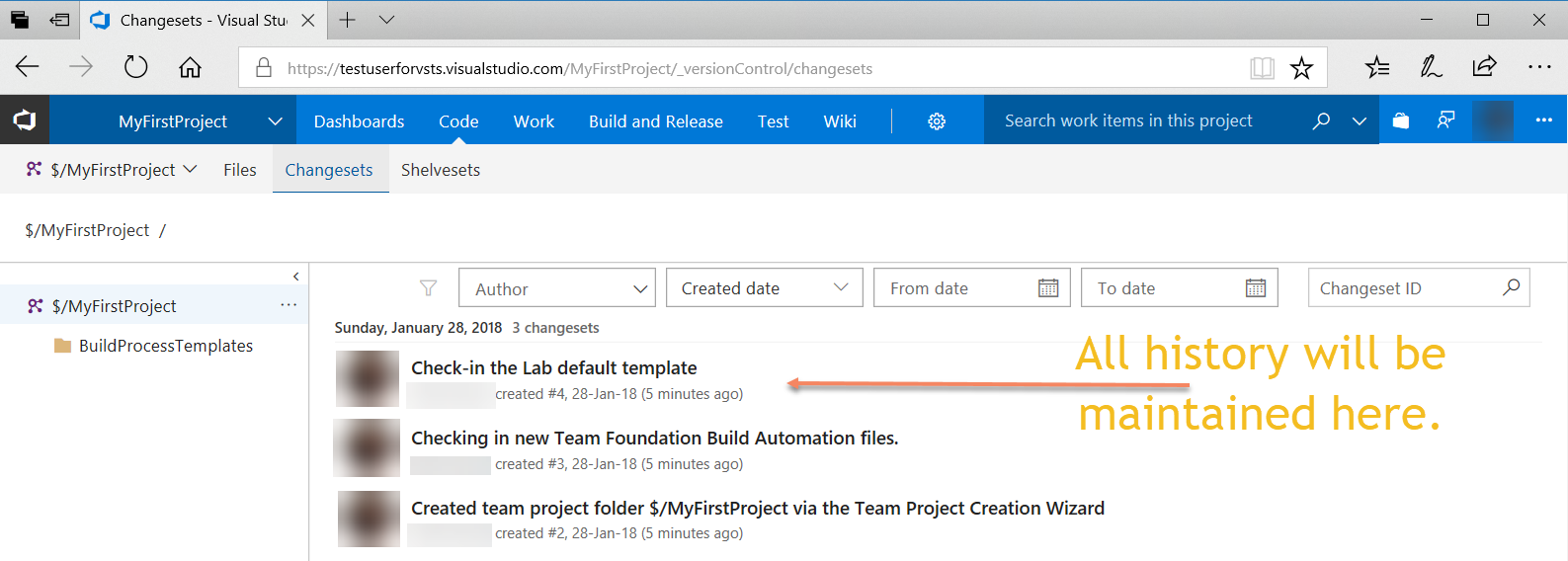
All the history is maintained in Changesets as shown above.
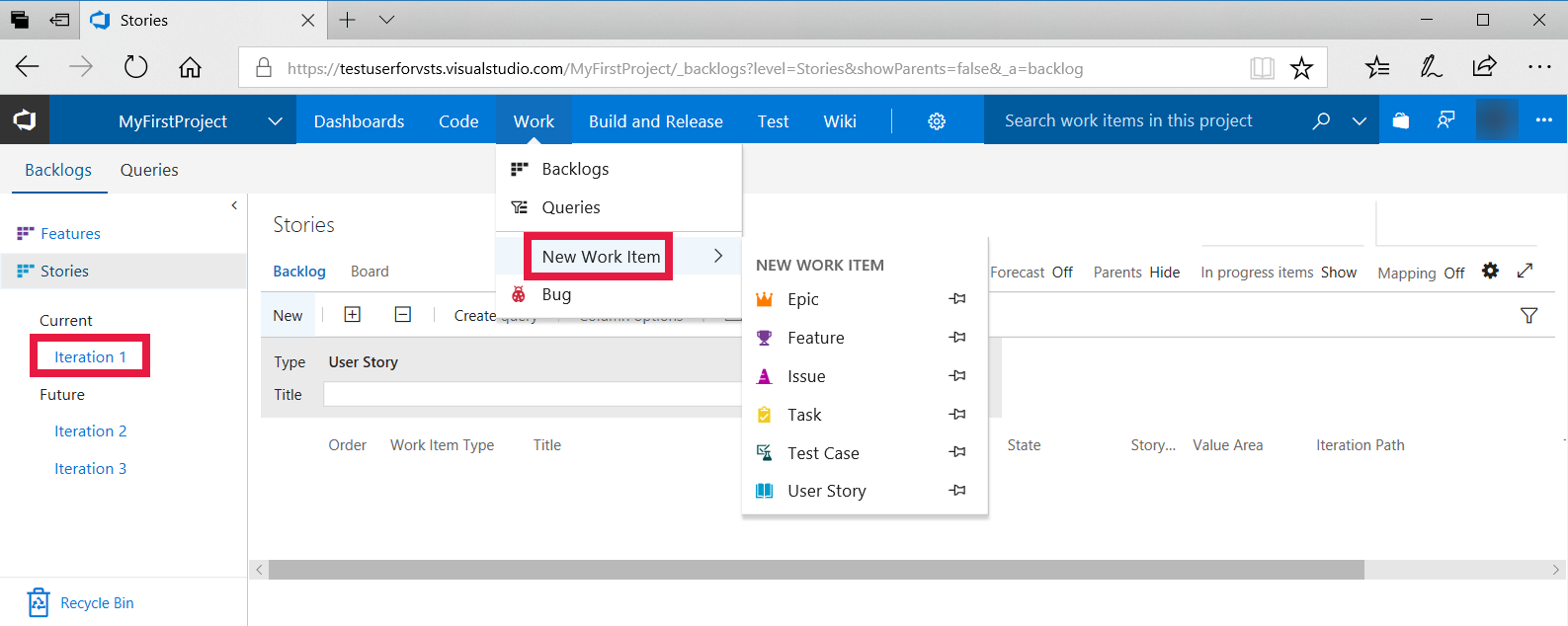
In the work tab, you can create a new feature, or create a bug or task and assign it to the dev teams.
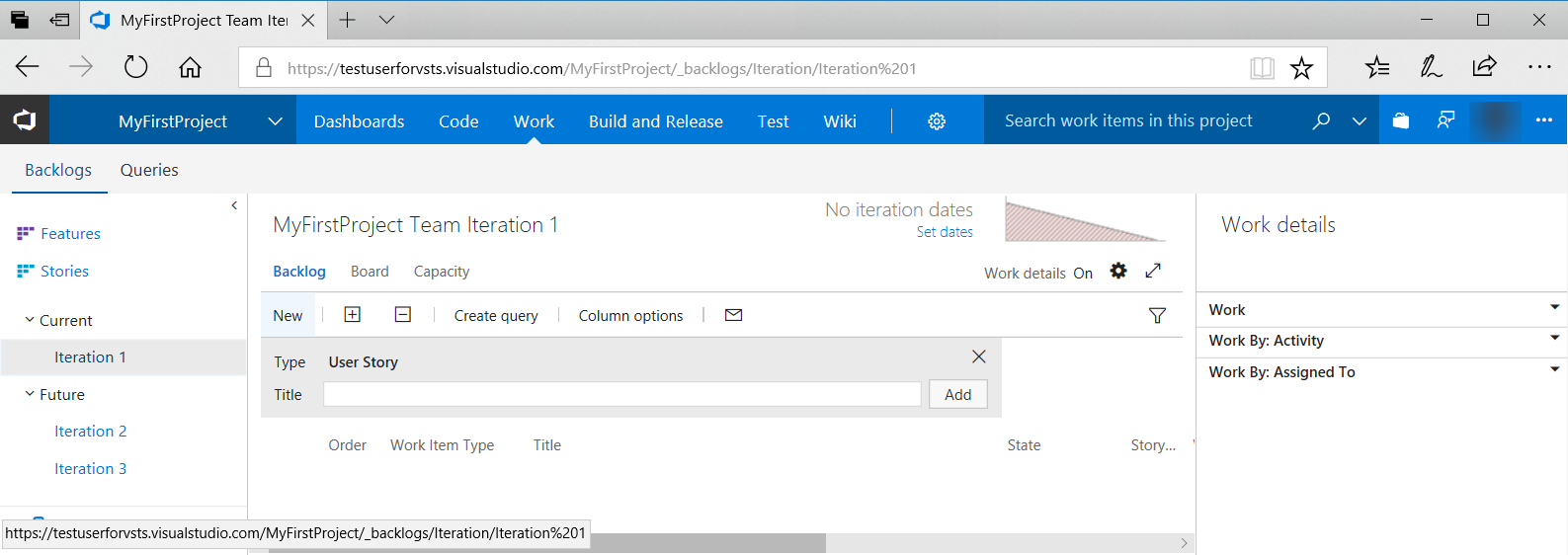
You can create a new user story in current iteration or sprints.
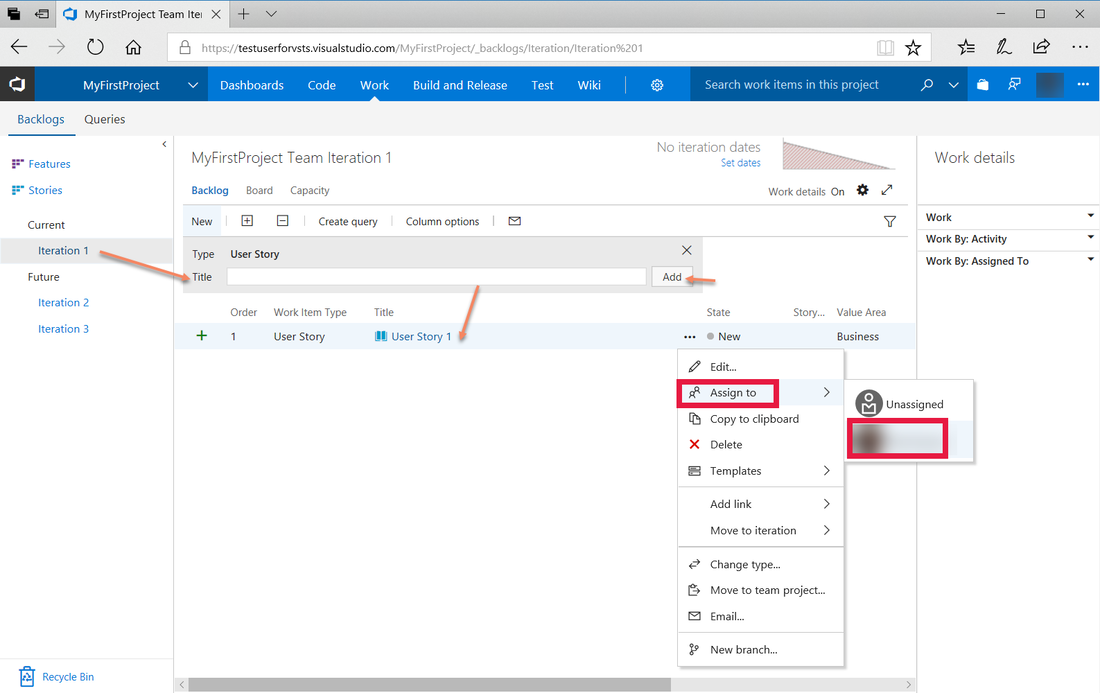
Above the created user story is assigned to a team member so that he can work on it.
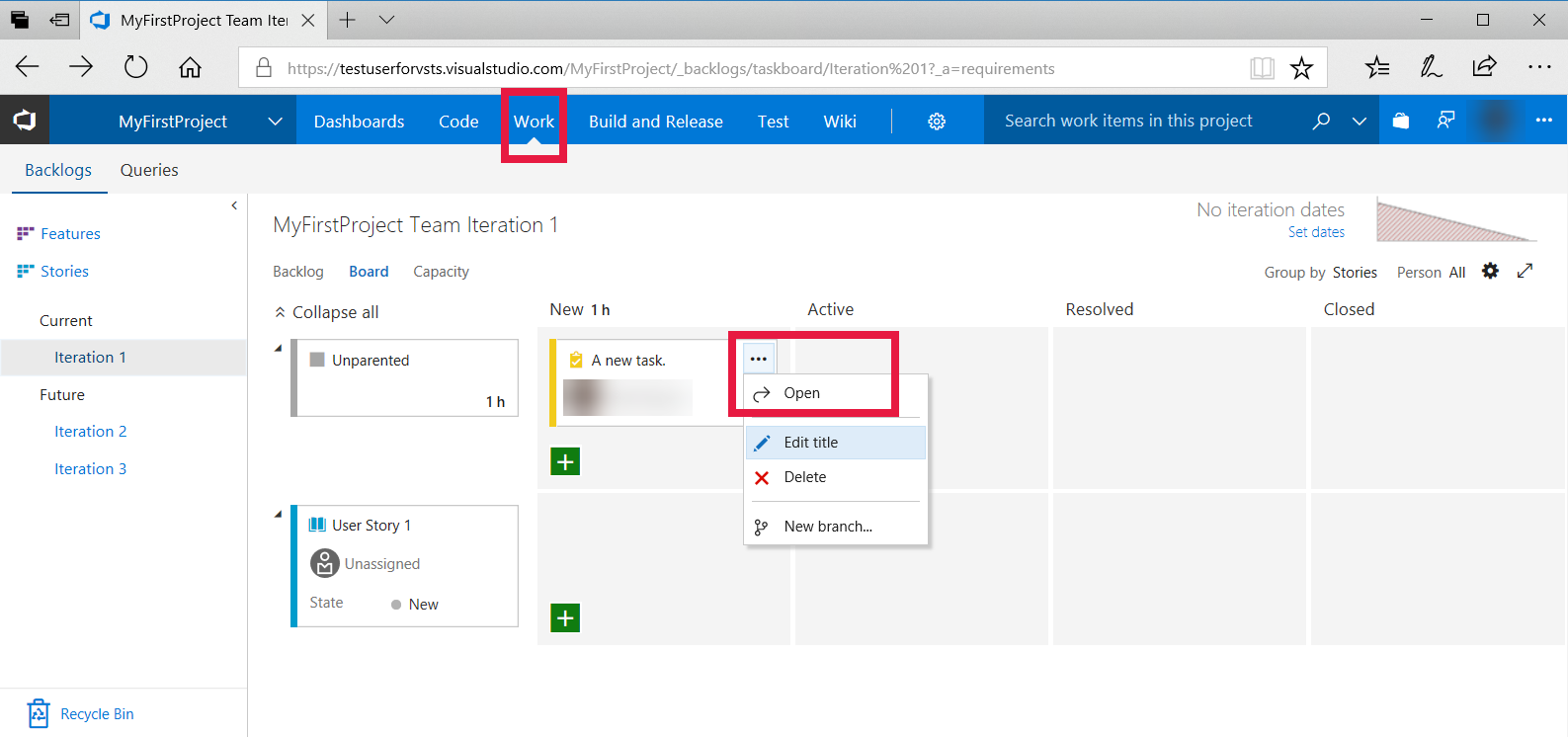
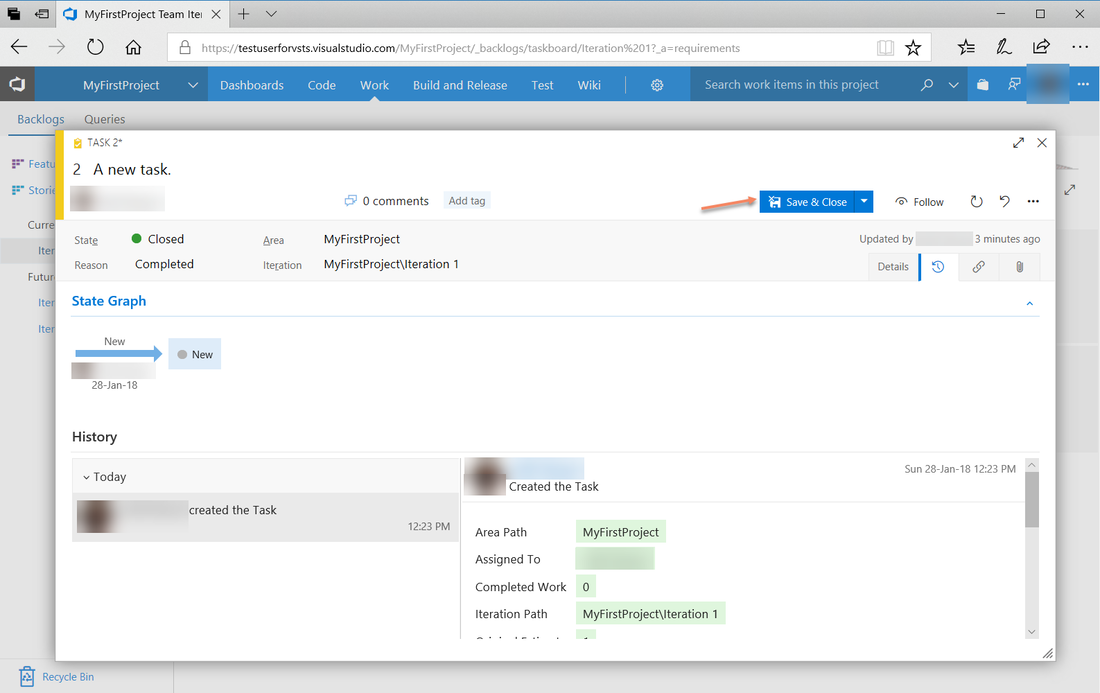
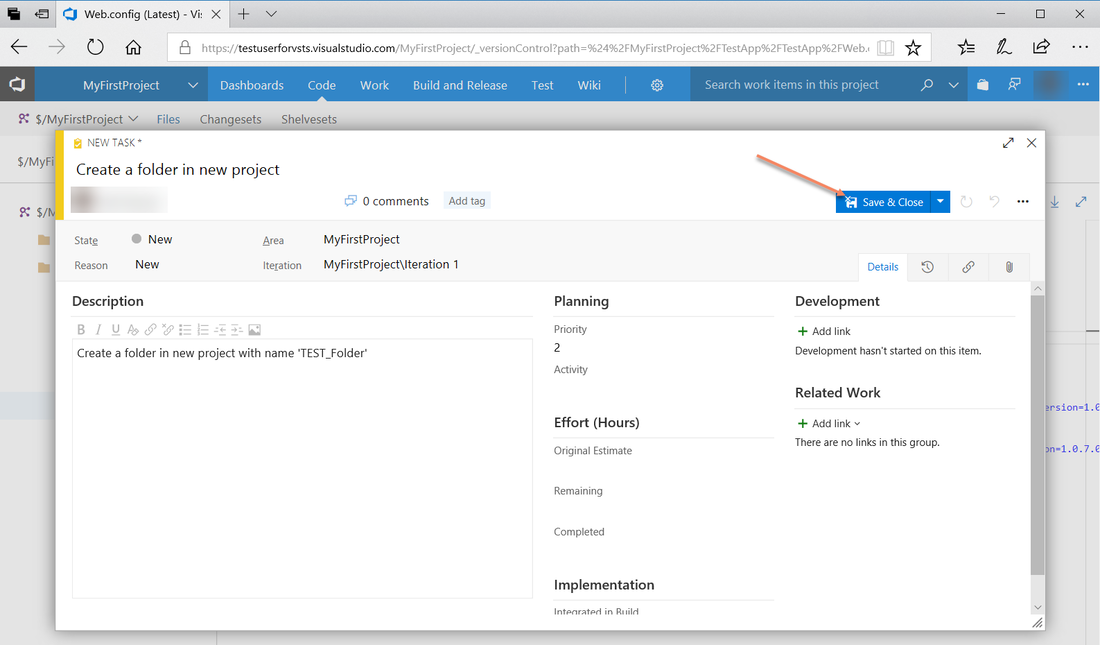
Now let’s see how to create a new task.
Now let’s see how to create a new task.
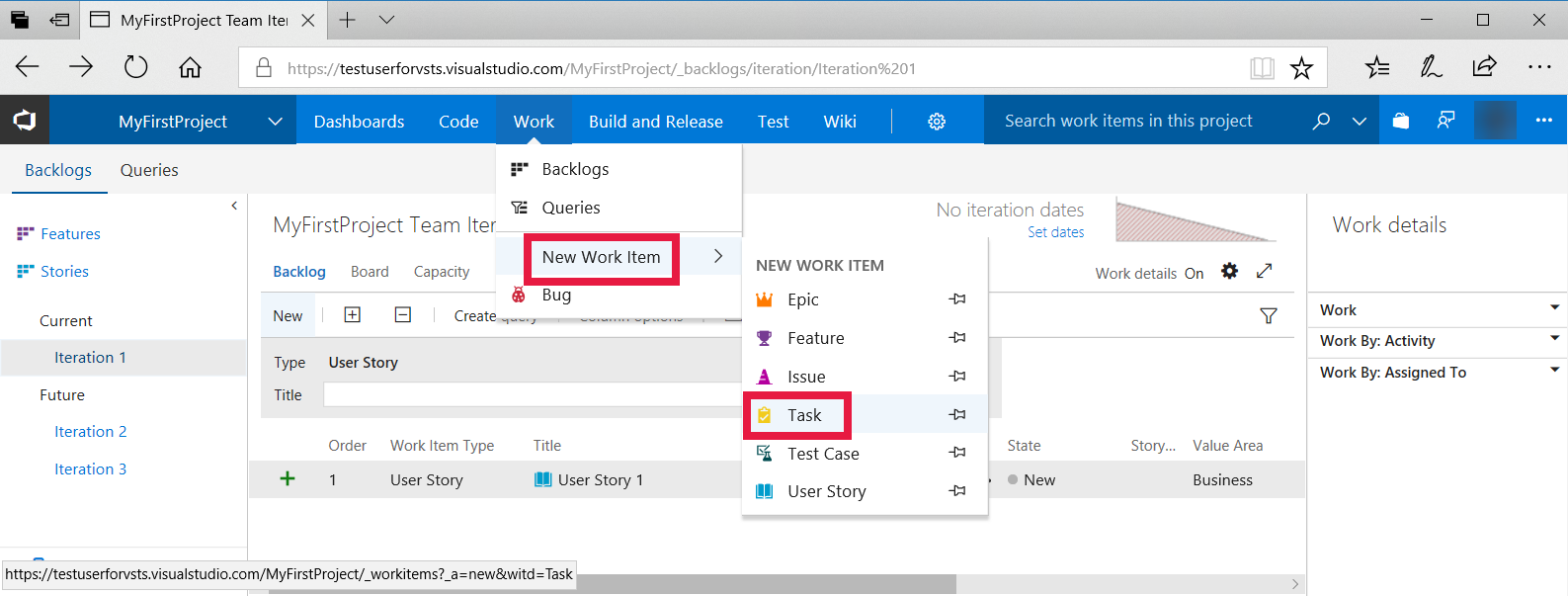
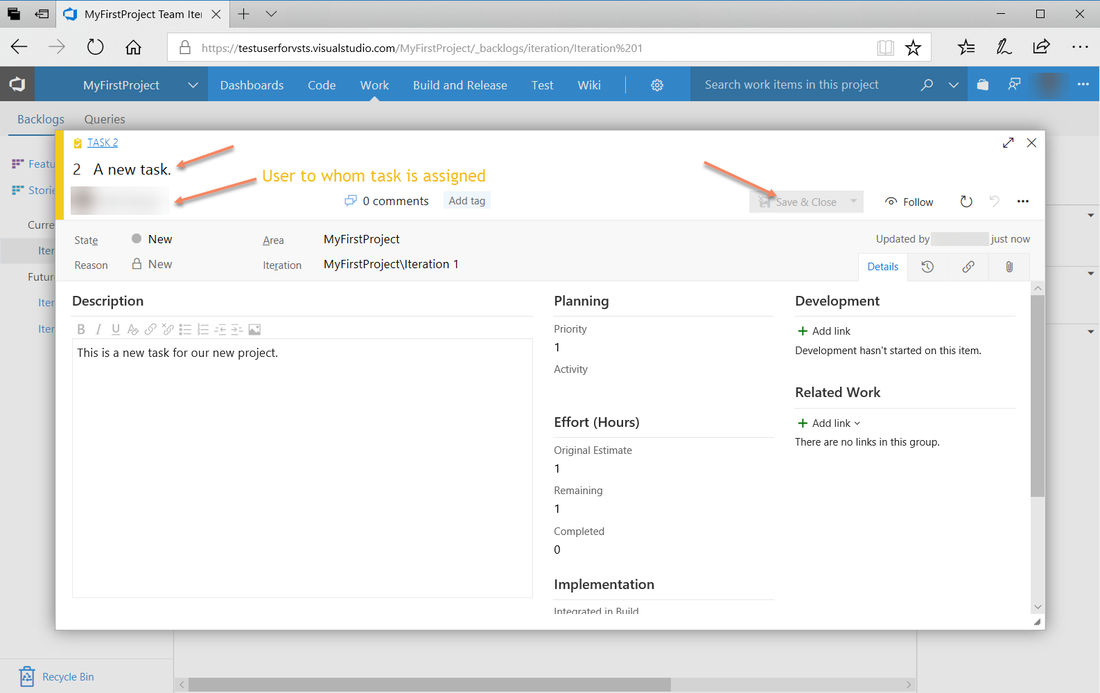
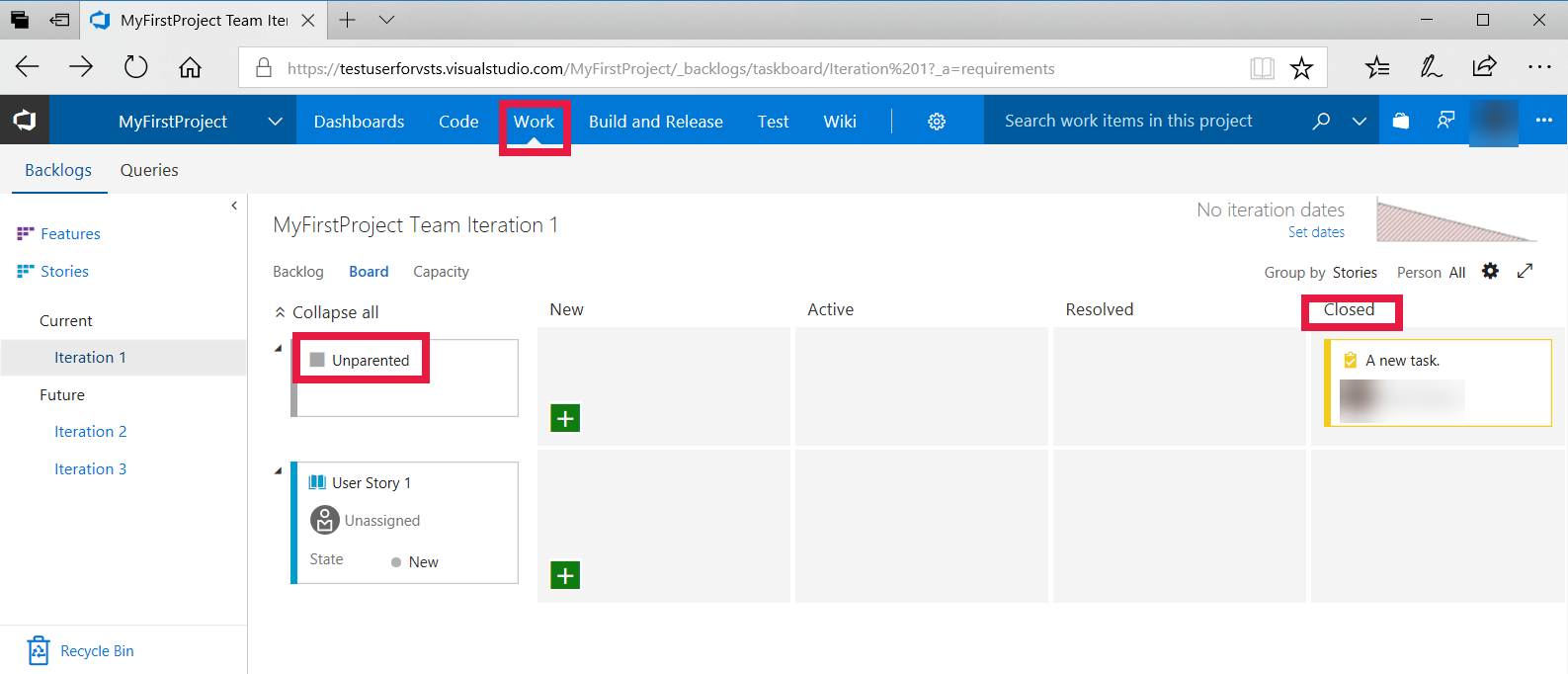
Once you click save and close button, you can check the task in work menu.
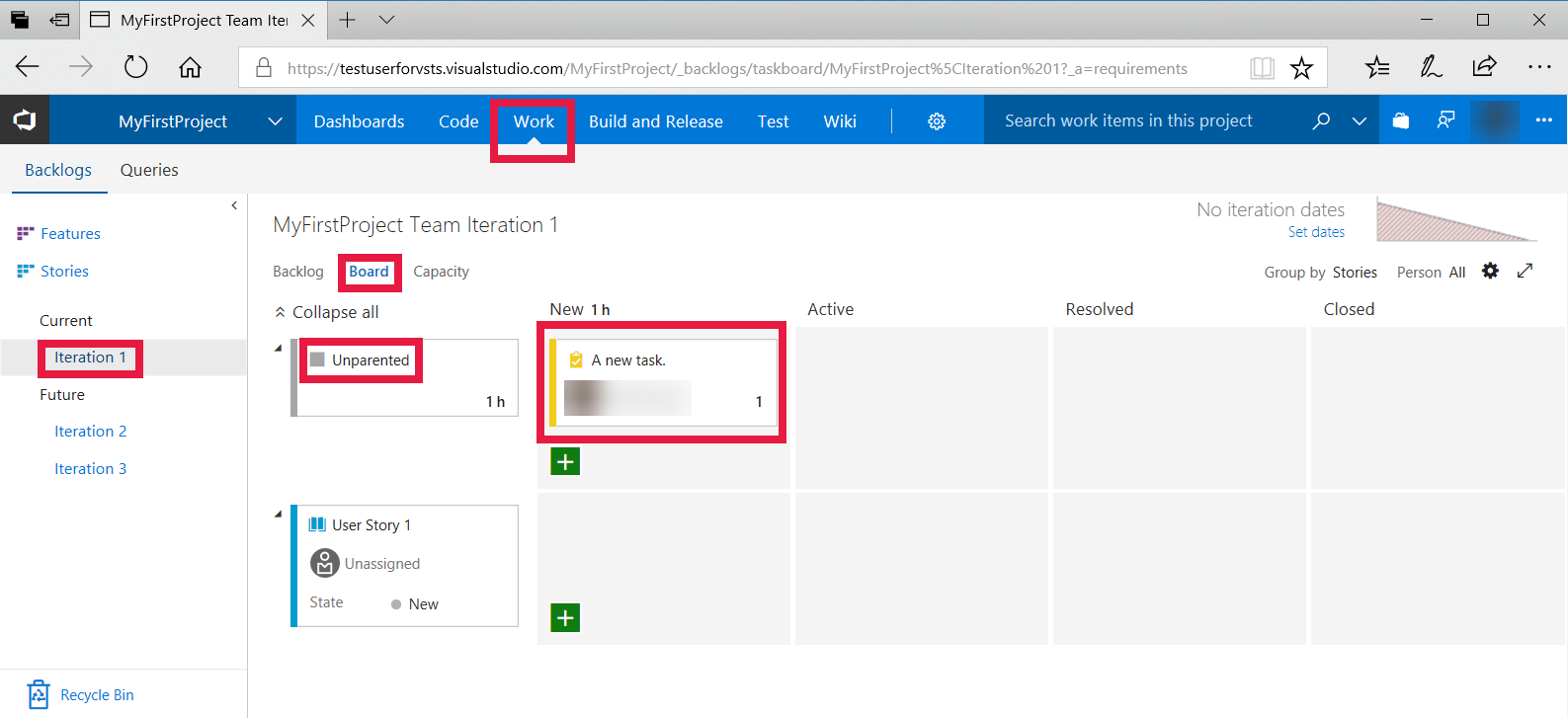
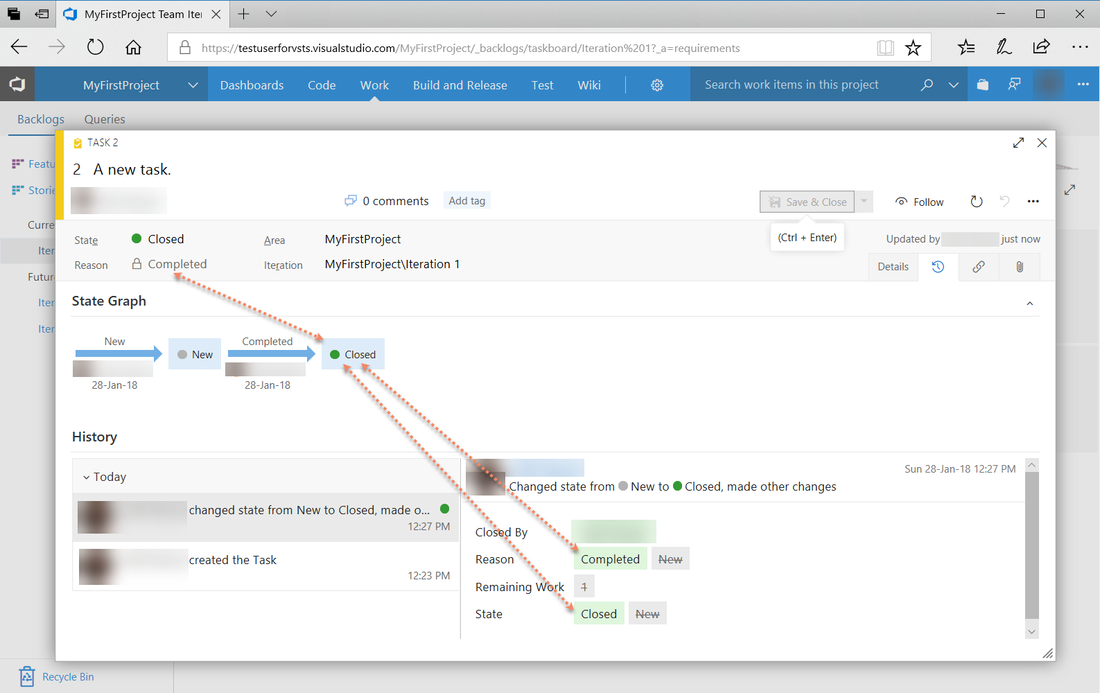
Once the work is completed, asp.net developer/team member can change the status of the task, assign it back to the creator of task so that he can test the feature and gives his signoff to deploy. Also, full history is maintained against each task.
Deploying ASP.NET MVC Web Application To Azure Cloud Service Using Visual Studio 2017
All we have seen above is through web application of Team Foundation Server. Now, let’s create a new project in Visual Studio and map that project to the above created project and maintain all the team from TFS in Visual Studio 2017.
First login with same credentials as above in Visual Studio.
First login with same credentials as above in Visual Studio.
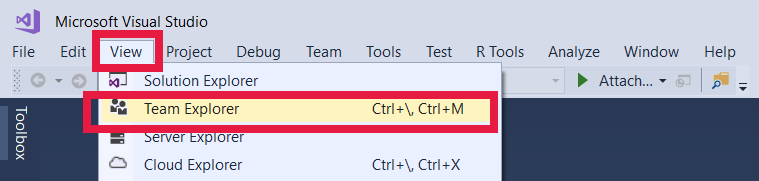
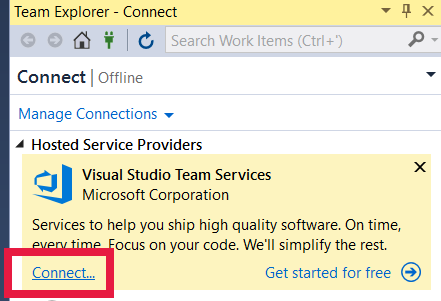
Once you click Connect button, a popup will appear to enter login credentials. Once you enter them, your team project will appear like below.
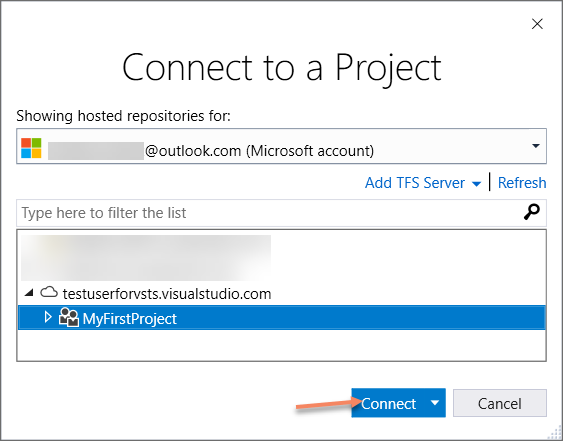
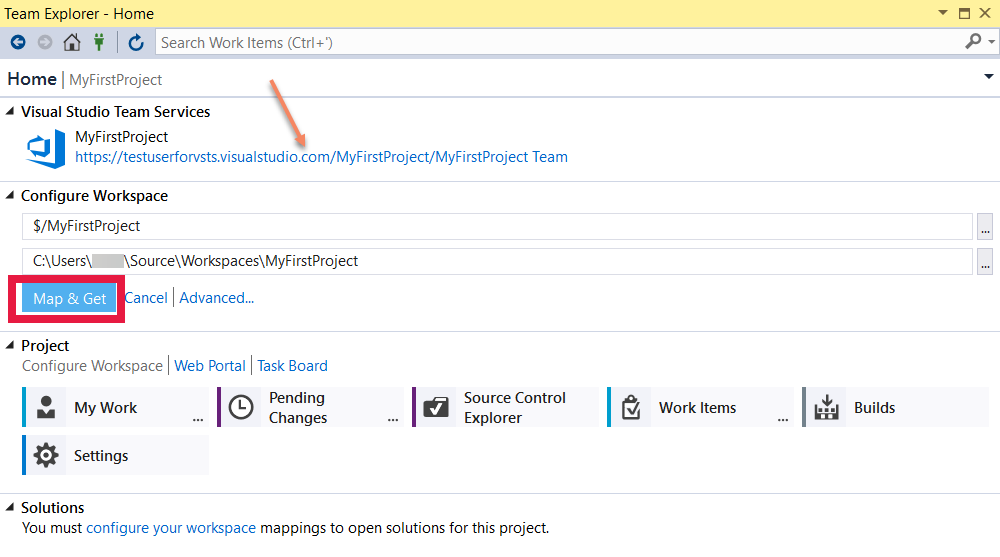
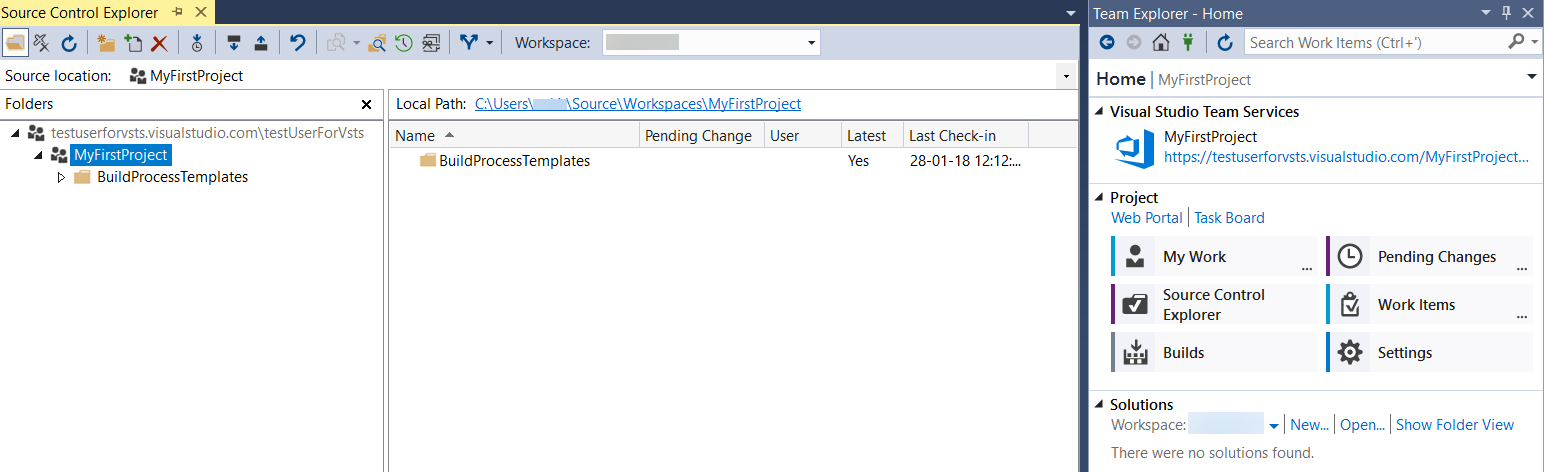
Now, your team project is mapped in Visual studio. Let’s quickly create a new web application and map it to source control.
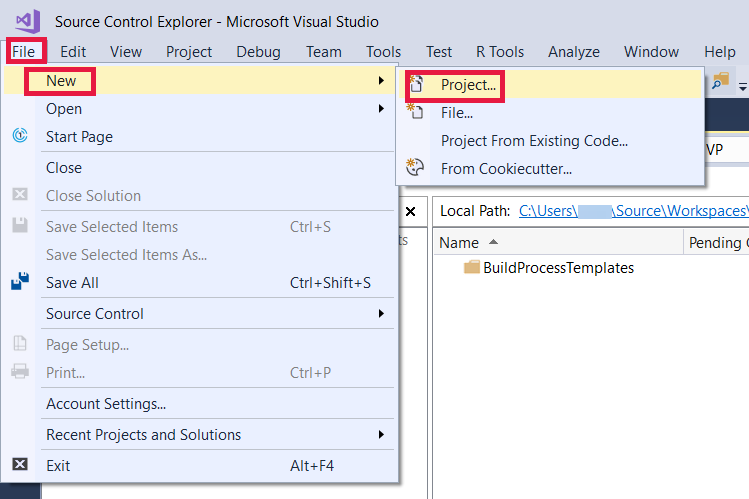
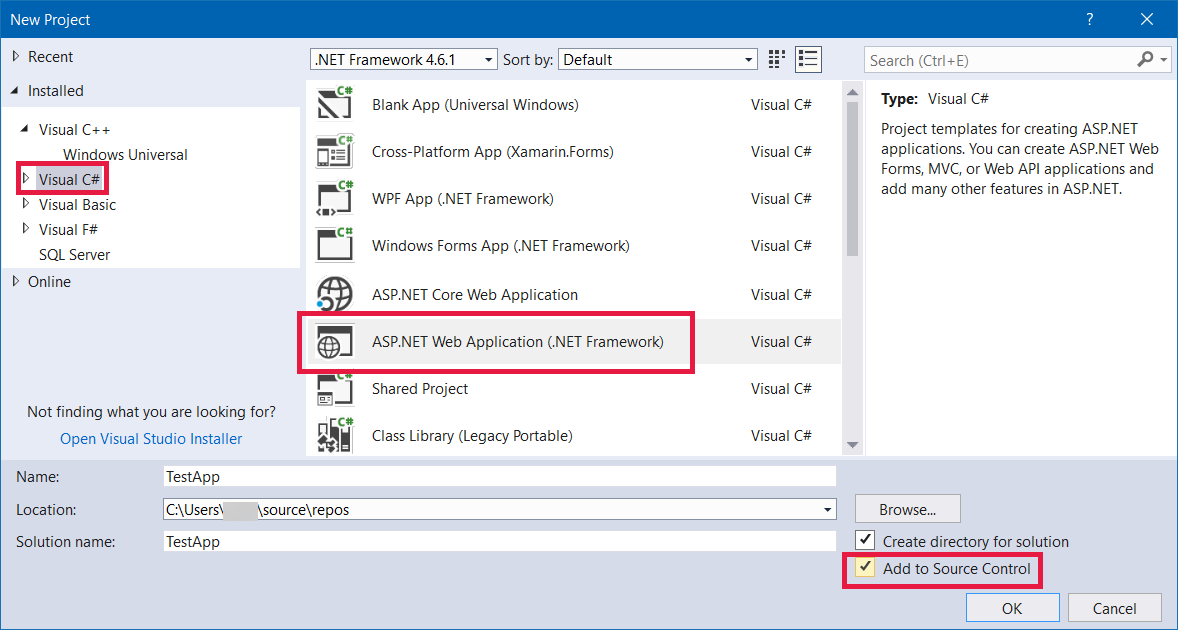
Make sure that you click on Add to Source Control tick box.
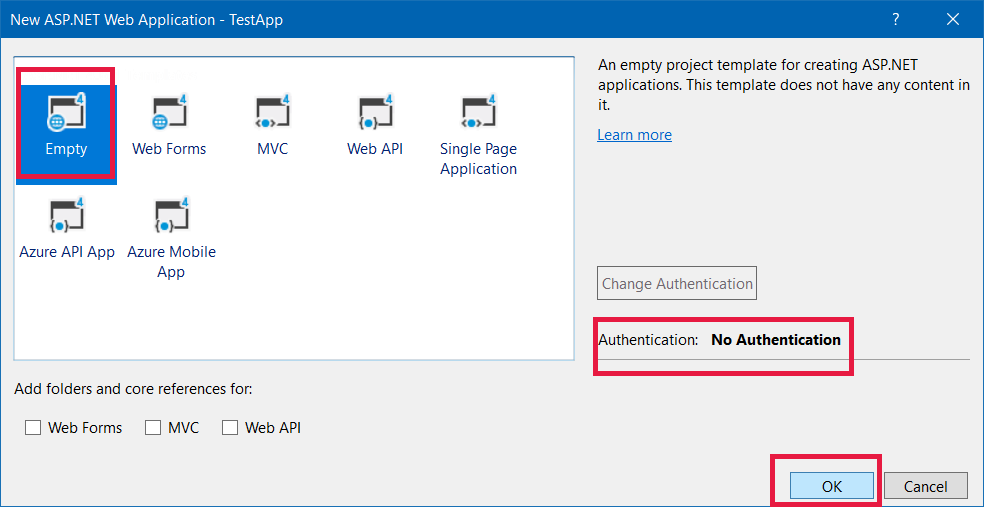
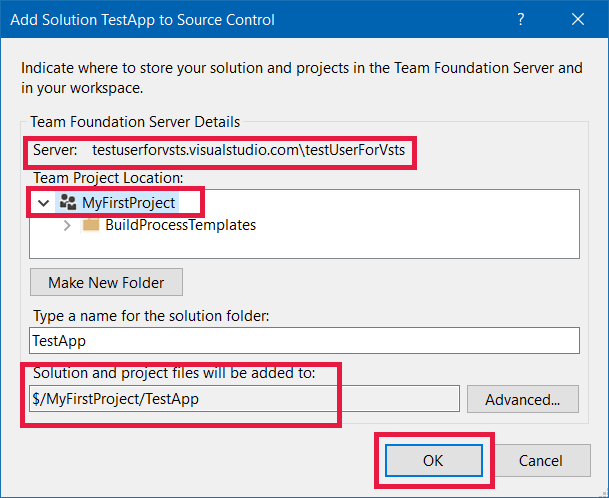
Above windows is asking to map the project with TFS.
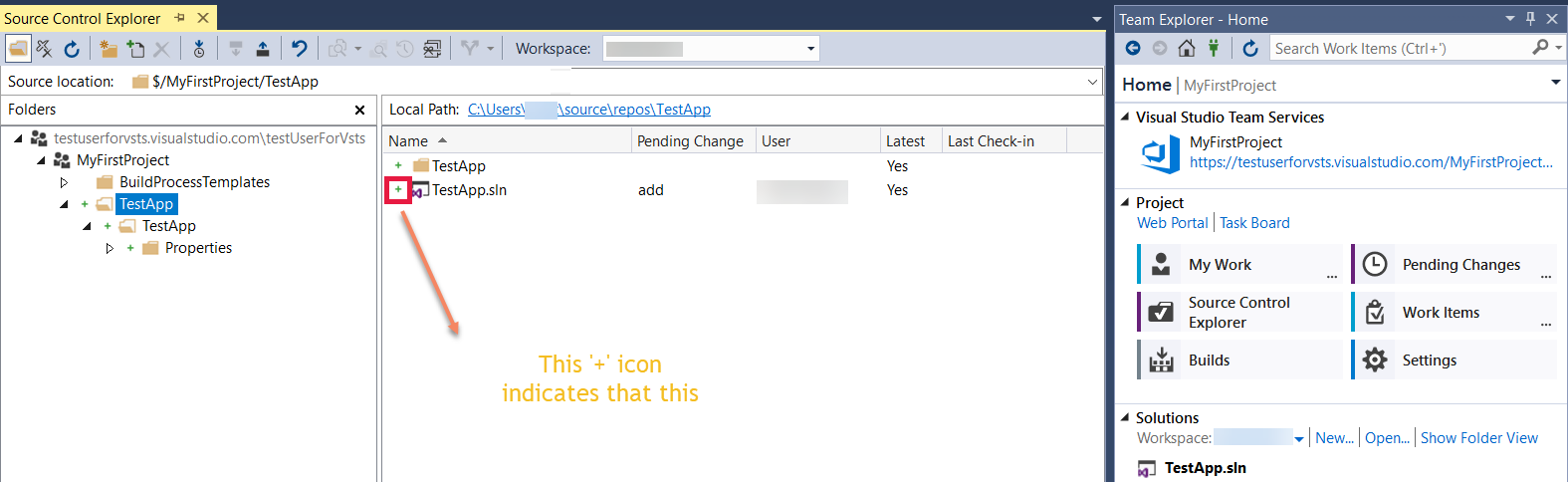
The ‘+’ icon indicates that these are the new files.
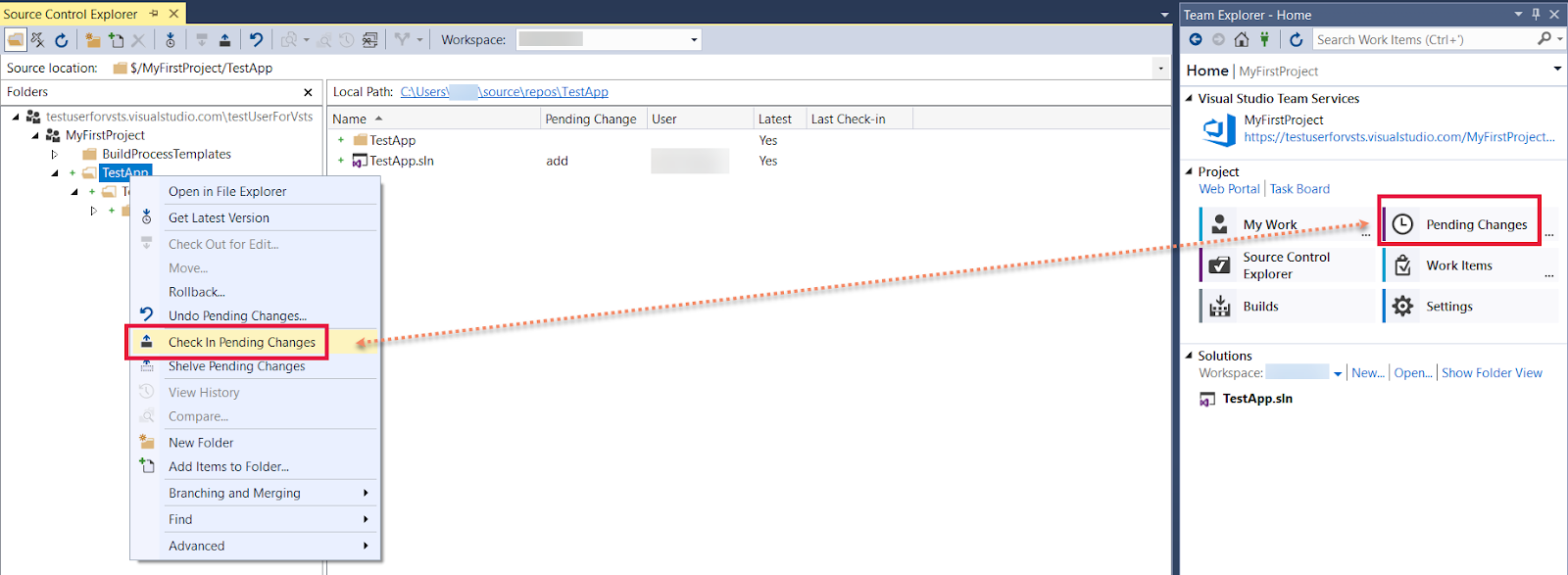
Now, let’s save / check-in these files to TFS server and check whether they are visible in our TFS web app.
Now, let’s save / check-in these files to TFS server and check whether they are visible in our TFS web app.
Top useful .Net extension methods
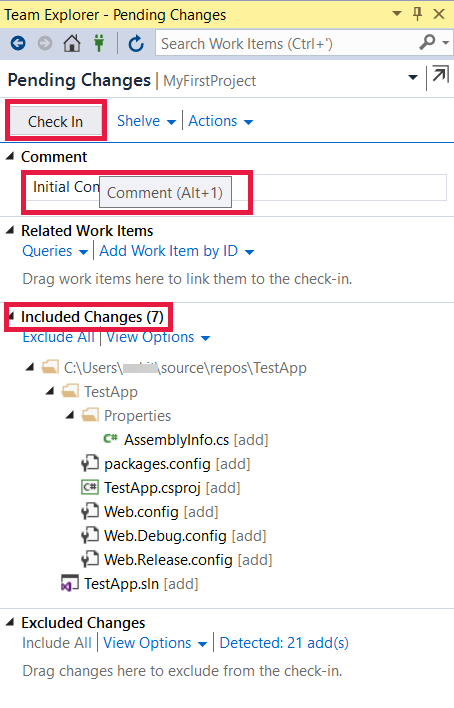
Enter some comment and select the files to be included for push to server.
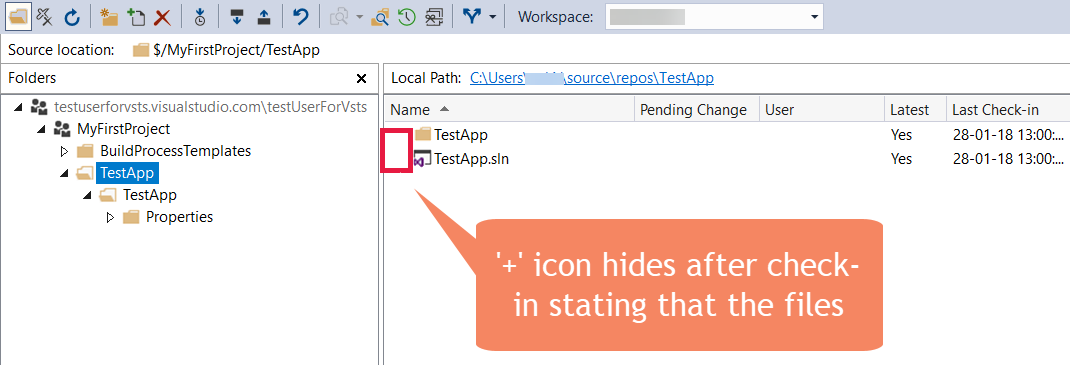
From the above image, you can see that the project is saved to server and now it is accessible to all team members.
Now, let’s assign a new task to team member, and close the task with Visual Studio.
Now, let’s assign a new task to team member, and close the task with Visual Studio.
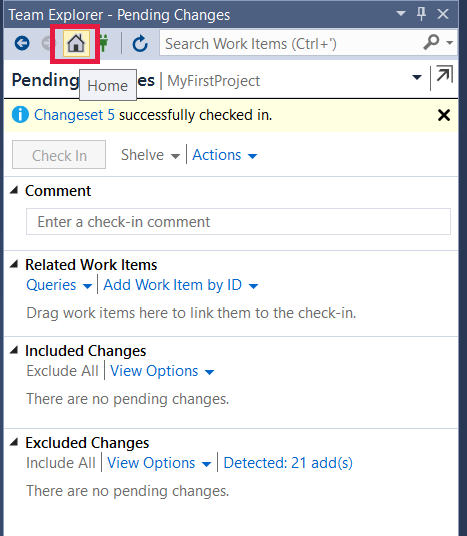
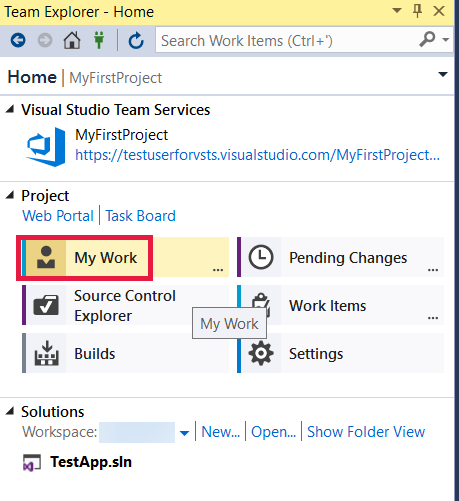
Once you click on My Work, all the tasks, bugs, features etc. assigned to you will appear.
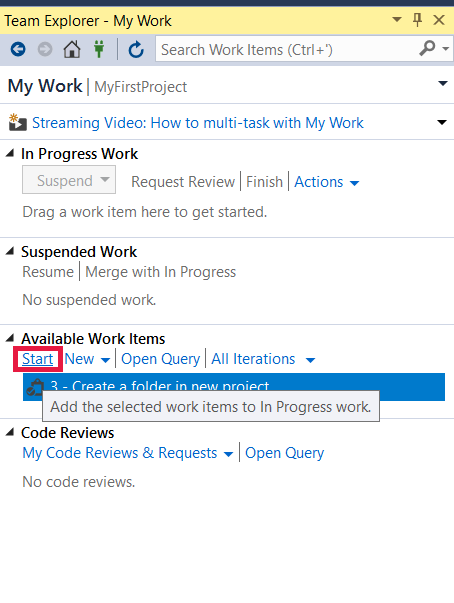
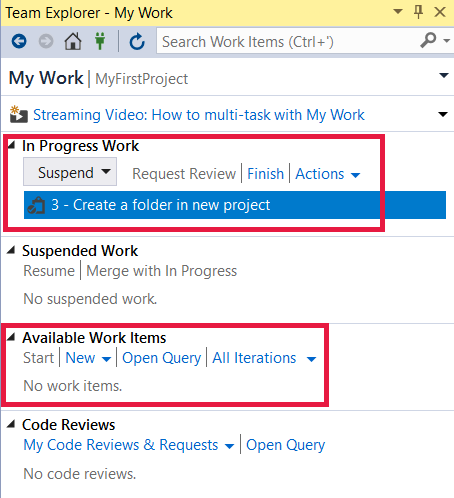
Once you start working on it, it will be added to ‘In Progress’ tab.
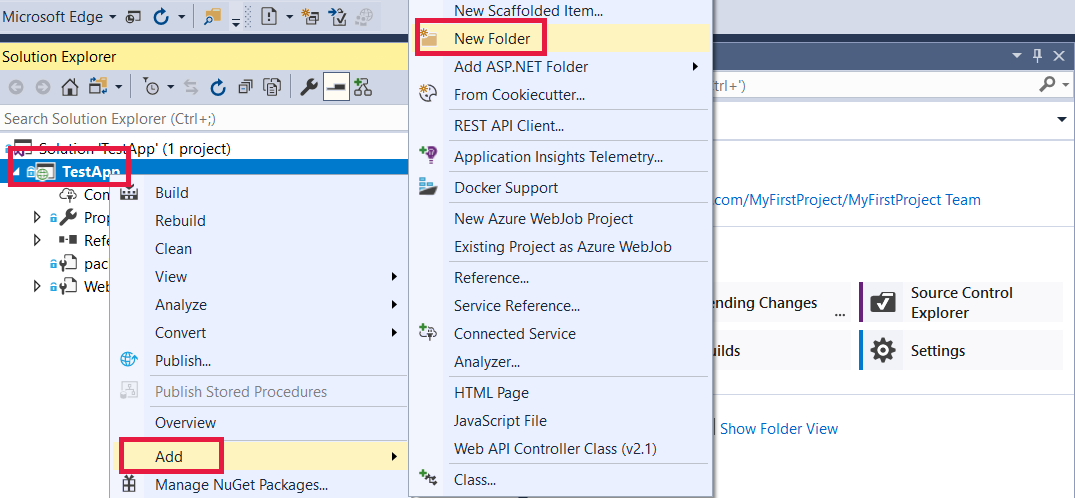
Let’s complete the work.
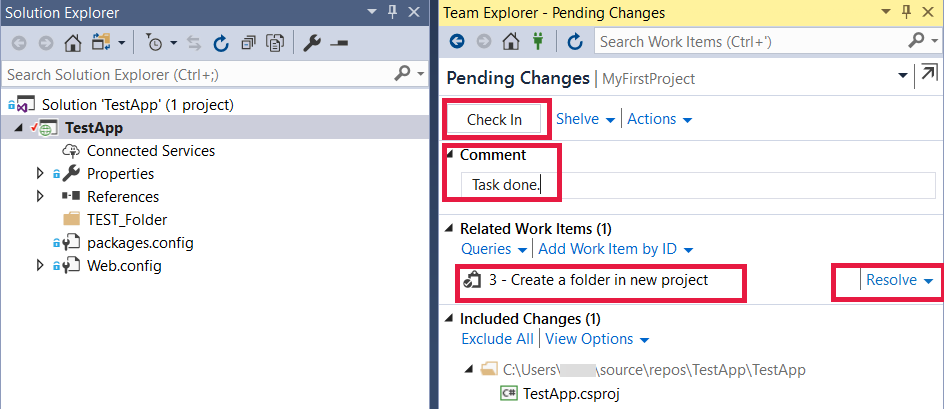
Now, let’s check-in the changes to server, and see if the task got closed in TFS or not.
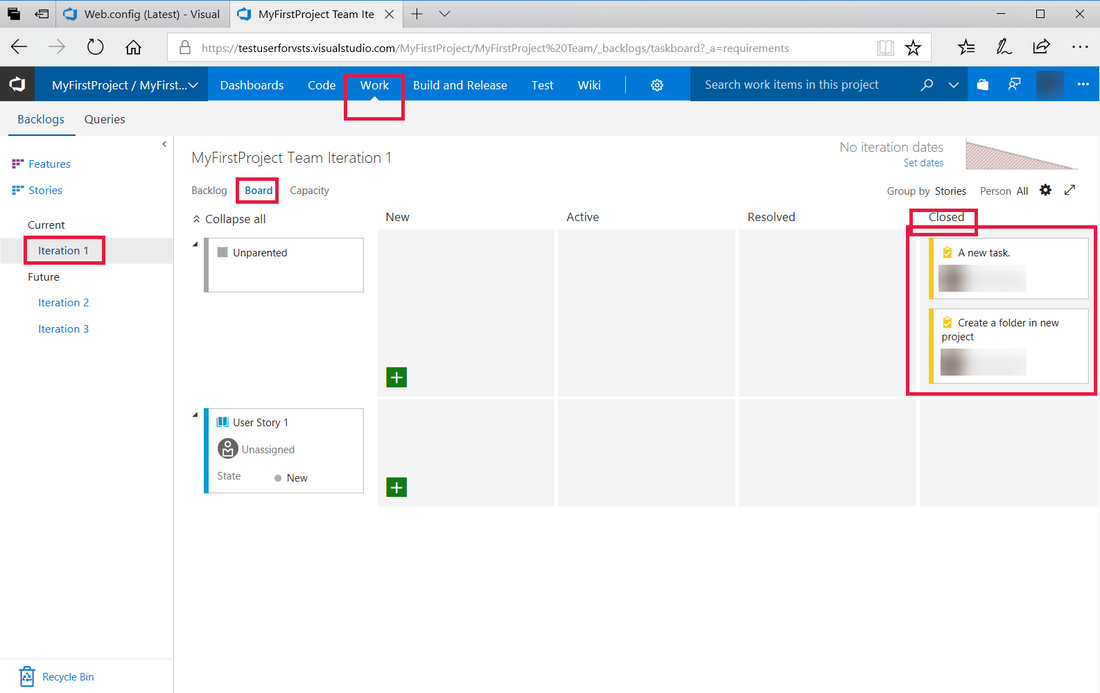
So, you see how we can maintain all the team and project using TFS 2017 web app and Visual studio.
Aegis Softtech shared this concept to help the global asp.net development community in understanding the concept of Scrum based team and project management in TFS 2017 using visual studio and web app.
Happy coding!!
Aegis Softtech shared this concept to help the global asp.net development community in understanding the concept of Scrum based team and project management in TFS 2017 using visual studio and web app.
Happy coding!!
 RSS Feed
